ChatGPT, Claude and Gemini from Hong Kong: Singapore Setup

ChatGPT, Claude and Gemini all work in Singapore. In Hong Kong, two don’t open at all, and the third works on the web until you reach the developer tools that exclude Hong Kong.
A VPN gets you to the login page. Three problems sit stacked on top of each other, and a VPN only touches the first one.
This post sets up all three services under one Singapore identity. Expect about two hours of active work. Every step ends with something you can check on screen before moving on.
Steps 1 to 7 build the Singapore foundation, Step 8 registers and pays for the accounts, the next two sections cover optional terminal coding tools and daily habits, and Step 9 runs the ten-point check at the end.
At a glance
- A phone number, only if Google asks (Step 1). Google sometimes asks for SMS at signup; keep a SIM ready. Claude does not ask for one.
- A Singapore proxy connection (Step 2). One dedicated static residential address from IPDeep (host, port, username and password).
- The clock and the language (Step 3). OS timezone set to Singapore and language to English (both places use UTC+8, so the clock stays unchanged).
- A separate browser window and Gmail account (Steps 4 and 5). One isolated BitBrowser window (
SG) using that proxy for Google signup and the three AI websites. - A rule-based routing app on your devices (Step 6). Shadowrocket or Clash: AI domains via Singapore daily, whole device on Singapore for setup and checkout.
- Singapore Google billing and a payment card (Step 7). Singapore country and address on Google, paired with an accepted card (or Starryblu’s optional Mastercard).
- Signups, checkout, terminal setup, and the ten-point check (Step 8, the terminal and daily-use sections, then Step 9). Register on the web in BitBrowser, pay via Google Pay or Play billing (BlueStacks or Android phone where needed for ChatGPT/Claude; BitBrowser for Gemini), optionally sign in terminal tools, then run Step 9’s check.
The three walls
Region is where your connection arrives from. Identity is the account and the environment that created it — browser settings, clock, language — plus whether later sign-ins stay consistent. Payment is the billing country, the address on file, and the payment method behind checkout.
Clearing one layer doesn’t satisfy the others: a proxy only clears the network check, while signups, developer region gates and payment declines test identity and billing independently. Treating them separately makes issues easy to isolate.
What you need
| What | Detail |
|---|---|
| Time | About two hours of active setup |
| One-off cost | Client: HK$22 for Shadowrocket on iOS/iPadOS (Clash apps on Mac, Windows and Android are free). SIM: optionally ~HK$70 for a UK giffgaff SIM (£5 credit) or HK$50–100 for a Hong Kong SIM, only if Google asks for SMS or you want SMS recovery. Card: HK$0 if Google accepts your card, or Starryblu’s Mastercard (official tiers list US$0 free and US$9.99/mo Plus; user reports on queued/physical cards mention one US$9.9 Plus month, not renewed the next month) |
| Monthly cost | ~US$6 for the Singapore connection (~HK$47), plus your AI plans |
| Difficulty | Mild. Settings work, plus pasting host, port, username and password into two apps |
| Hardware | Mac or Windows PC (BlueStacks Air requires Apple silicon; BlueStacks 5 runs on Windows; Intel Mac users can use an Android phone or Windows PC when an Android environment is needed). A phone, only if Google asks for SMS |
Two links here are commercial: the IPDeep link is a referral link, and MHQK058 is wquguru’s invite code, not mine. Neither changes what you pay.
The rule
The setup aligns four local checks around Singapore.
Use these four checks to configure and diagnose your setup.
| Check | Target setting | Where |
|---|---|---|
| The connection you come from | Singapore (required where services gate by network location) | Step 2 |
| The computer’s timezone | Singapore (required for this setup) | Step 3 |
| The computer’s language | English (recommended; optional if you need Chinese menus) | Step 3 |
| The billing country and address on Google | Singapore (required for this guide’s Google billing) | Step 7 |
The diagram’s outcome boxes are not predictions: no source shows matching settings keep an account working, or a mismatch triggers re-verification on any schedule. If asked to verify again, rerun the four checks; different products check different gates (Step 8 covers Google’s rules). Google sometimes requires SMS at signup — if it insists, use a Step 1 SIM.
The four pieces
Use the same IPDeep details in BitBrowser and Shadowrocket or Clash so web, desktop and checkouts share one Singapore IP.
| Piece | Job it does for you | How this guide uses it | Step |
|---|---|---|---|
| IPDeep | Dedicated Singapore home-style connection | One fixed Singapore address (host, port, username, password) shared across the apps below. | 2 |
| BitBrowser | Separate desktop browser for AI websites | Isolated SG window with its own profile, timezone and language for ChatGPT, Claude and Gemini on the web. | 4 |
| Shadowrocket or Clash | Split-routing app on your computer and phone | Routes AI apps and terminals via Singapore daily while local traffic goes direct; switches whole device to Singapore for setup/payment (Shadowrocket iOS/iPadOS; Clash Verge Rev Mac/Windows; Clash Meta Android). | 6 |
| BlueStacks | Runs Android on your Mac or Windows computer | Opens Play or mobile web checkouts on desktop (where Google Pay appeared for my ChatGPT/Claude checkouts). Uses full-device Singapore routing; optional if SG shows Google Pay or you use an Android phone; unneeded for Gemini. | 8 |
BitBrowser owns web logins on the three AI sites so everyday Chrome (cookies, extensions, Hong Kong history) stays separate. Shadowrocket or Clash handles native apps and terminals; BlueStacks (or an Android phone) handles Play checks or mobile checkouts.
Why Singapore and not Taiwan
What matters is whether the connection lasts. Singapore has many residential proxy providers, so if an address degrades you can replace it in an afternoon, and Taiwan’s undersea cables suffer cuts you cannot schedule around.
The deciding reason for me is simpler: Singapore fits an English-first workflow cleanly and stays boring — English menus, a Singapore billing address and SGD prices match how I already work.
If a Singapore endpoint ever degrades and you replace it, run Step 4’s ToDetect checks on the new address before signing back into your accounts.
Why a new account, and not the one you have
Your main Google account carries too much to risk: recovery email, 2FA, Drive, photos and subscriptions. Disablement over a terms dispute cuts off access to the services tied to that account, even though Google documents a restoration appeal; a dedicated second account isolates this setup.
The second reason is mechanical. Google Payments locks each billing profile to one country for tax compliance — you cannot edit the country on an existing Hong Kong profile, only create a new profile beside it. Under Google Play’s 90-day rule, switching Play country requires waiting at least 90 days after first setting a Play country and at least 90 days between switches (“in some cases, additional restrictions may apply”), being in the new country with a payment method from it, and not belonging to a Google Family group; old-currency Play balance stays behind. Separately, Google’s Terms of Service country only changes via a region-change request to Google.
Even after a switch, earlier Hong Kong logins, devices and payment history remain, and your Hong Kong payments profile stays active unless closed. On Google’s AI developer forum, one unconfirmed reply (not official) also flagged an active Hong Kong payments profile and proxy use as troubleshooting leads when a paid plan showed ineligible in Antigravity (Step 8).
A fresh account starts without years of Hong Kong login/payment history and leaves your main inbox, Family group and Hong Kong Play balance untouched.
Step 1 — A phone number, only if Google asks
Time: ten minutes — optional. Use either option if Google prompts for SMS or you want SMS recovery.
Google lets you add a phone number as an optional recovery method, though it sometimes requires phone verification during account creation. Keep a SIM from Option A or B ready in case Google asks for an SMS code at signup, or if you want a dedicated recovery line. Claude did not ask for a number.
Both services list Singapore and not Hong Kong. This is the setup I use from Hong Kong; see “Is this legal?” for the terms question. Claude did not ask me for a phone number.
Pick based on what you need:
Option A — a new Hong Kong number
Fastest if you only need a dedicated line for a Google signup prompt or recovery.
- Buy a prepaid SIM or eSIM from any Hong Kong carrier, registered with your HKID.
- Activate it and confirm an incoming text arrives.
- Keep it separate from the number on your main Google account, bank or existing logins.
Google accepts Hong Kong numbers for verification and recovery; Google’s region gates live on network location, account country and billing instead.
Option B — a UK number, if you want one that lasts
giffgaff roams overseas for incoming texts and gives you a real UK mobile number that keeps working while you travel. An unactivated blank SIM costs about HK$70 from 1WorldSIM with £5 credit included, which is the route I used. Buy an unactivated scratch-off card you register yourself, never a pre-registered SIM.
- eSIM, if your phone shows an EID line under Settings → General → About (most Hong Kong dual-nano-SIM iPhones omit EID).
- Physical SIM, otherwise: activate at giffgaff.com/activate, enter the six-digit card code, and top up pay-as-you-go credit rather than a monthly goodybag.
- Keep it alive with £10 credit, data roaming off, and one outgoing text every three months.
You should now see: a test SMS arriving on that number.
Two rules whichever SIM you hold:
- Keep recovery separate from your main number. One line shared across accounts ties their recovery together — if trouble hits one account, you don’t want every login behind the same number.
- Plan for losing the SIM, and avoid SMS for daily two-factor. Prepaid SIMs expire if you miss top-ups. Keep giffgaff topped up in a spare slot, and set an authenticator app or passkey on Google in Step 5 so routine logins survive if the SIM dies.
Step 2 — Buy a Singapore connection
Time: ten minutes.
Timezone, language and billing address stay put once set; your internet exit IP is the check that shifts without warning if a proxy rotates or drops.
A proxy relays your traffic so it reaches the internet from Singapore instead of Hong Kong. Proxy types look alike on pricing pages and behave very differently:
| Type | What it actually is | Verdict |
|---|---|---|
| Static residential (ISP) | One fixed household-range address assigned to you alone for months | This one |
| Rotating residential | Real residential exits, switching households on every request or timer | No |
| Datacenter | A server address in a hosting rack | No |
| Shared VPN | One exit IP shared by thousands of subscribers | Never |
Pick static residential for one fixed ISP address: rotating pools serve web scraping by changing exits between requests, datacenter IPs come from hosting ranges, and shared VPNs reuse one exit across subscribers.
- Create an account at IPDeep and confirm your email. If asked for an invitation code, enter
T0Z65C. - Choose Static Residential IP — neither Dynamic Residential nor unlimited-residential.
- Select Singapore. One dedicated address is about US$6 a month.
- Under IP type, pick Premium Native (
優質原生), not plain Native. - Copy the four connection values generated: address, port, username and password.
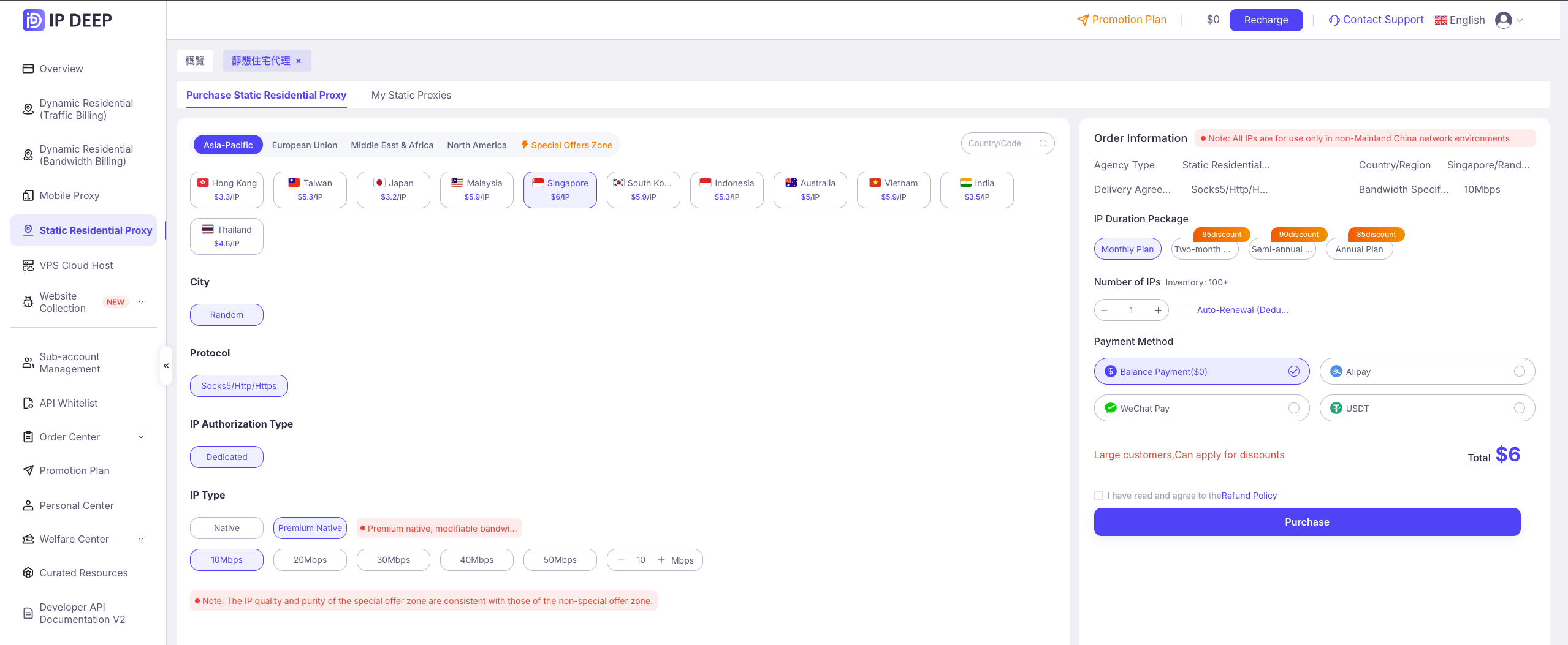
The purchase page. Singapore is US$6 an IP; Hong Kong is US$3.3, Japan US$3.2, Thailand US$4.6. The cheaper rows are the mistake this setup avoids.
Buy one address per human identity, not per service. Your Google, ChatGPT and Claude accounts represent one person, so they share one Singapore address. Only for a second person or another country should you create both a second browser profile and a second proxy endpoint.
Why Premium Native (優質原生)? Standard web pages and text chats run over ordinary HTTP connections, whereas live voice features in AI apps can use UDP transport. IPDeep points buyers to Premium Native as its tier for UDP voice traffic and bandwidth adjustments; neither promise appears on the purchase screen above, so treat that as IPDeep’s stated reason for the higher tier rather than a verified guarantee.
How each layer handles real-time traffic:
- Inside BitBrowser (Step 4), browser
WebRTCis blocked. Step 4 setsWebRTC(browser real-time voice/video) to Block insideSG. - On your computer and phone (Step 6), routing turns on
UDPrelay. Step 6 enablesUDPrelay in Shadowrocket and Clash soUDPvoice traffic from native apps can go through the Singapore proxy when the endpoint supports it.
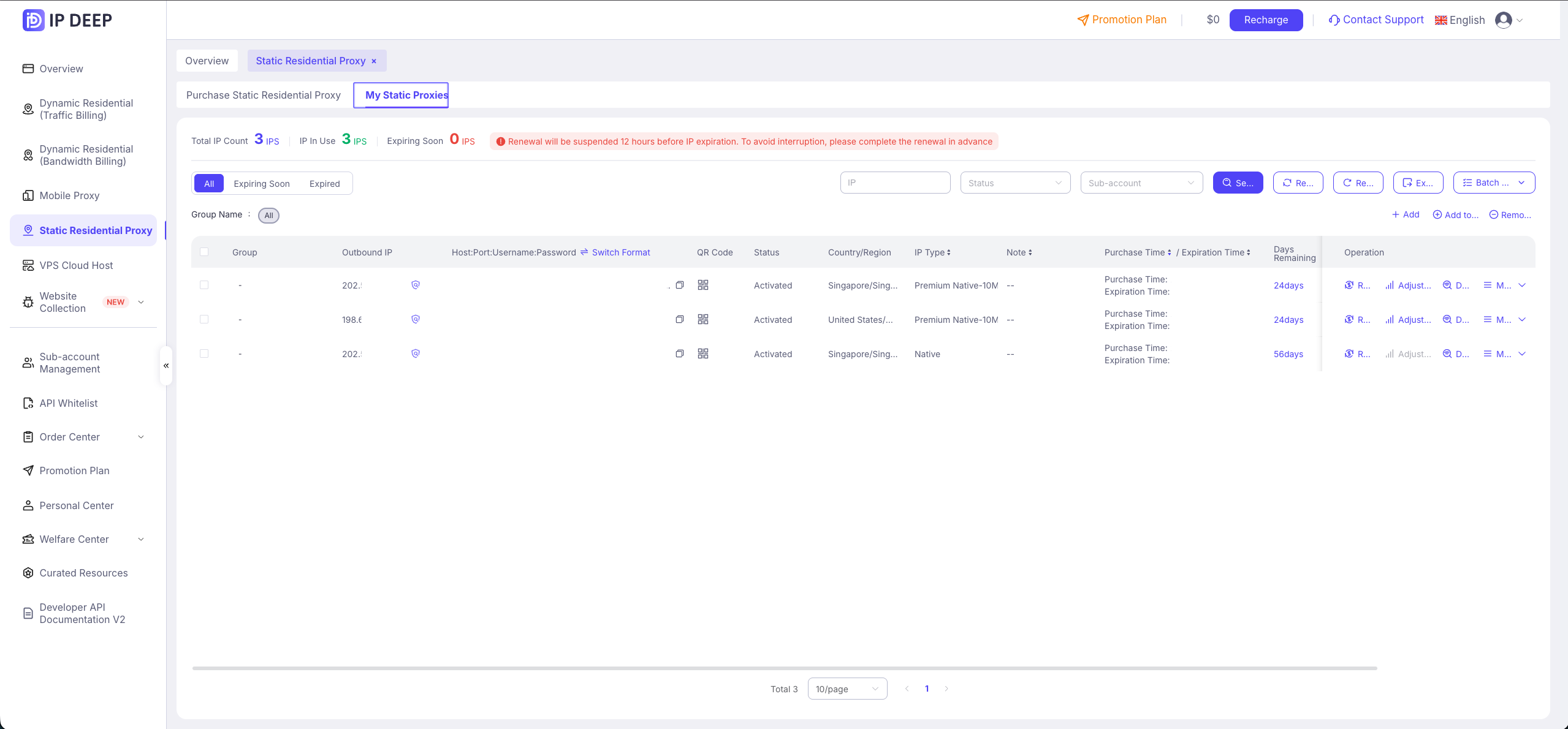
The endpoint panel, password blurred. Nothing in this guide needs to see yours.
You should now see: host, port, username and password saved for Step 4 and Step 6.
Providers usually deliver them on one colon-separated line:
198.51.100.24:25566:sg_7f2a:p@sswordIn order: host address, port, username and password (from the documentation range, belonging to nobody). Copy yours exactly; Step 4 checks that it classifies as Singapore residential.
If you already run servers
For SSH sessions, cron jobs and headless agents, a Singapore cloud VPS works directly: sessions survive closing your laptop and API keys stay off local shell history. IPDeep sells VPS instances under the same login — just check the region selector (cheap defaults often sit in another city), and remember a VPS has a datacenter IP. That’s fine where CLI or API calls only check geography, and unsuitable for browser account creation or web logins. Keep the VPS for headless jobs and the static residential proxy for interactive logins.
Step 3 — Change the computer
Time: ten minutes. Timezone is required; system language is strongly recommended.
BitBrowser’s SG window sets its own timezone and locale, but desktop apps, emulators and OS APIs read macOS or Windows directly.
The timezone — do this one
macOS: System Settings → General → Date & Time → Time Zone → Asia/Singapore.
Windows: Settings → Time & language → Date & time → turn off “Set time zone automatically”, then pick (UTC+8) Singapore.
Singapore and Hong Kong are both UTC+8. Your clock and calendars don’t move — only the timezone label shifts to Singapore.
You should now see: the same clock time, labelled Singapore.
The language — recommended
Move English to the top of your OS language list so apps don’t see a Chinese OS locale under an English browser. Chinese input works unchanged; only menus turn English. If English menus are a dealbreaker, keep the Singapore timezone.
Step 4 — Set up the browser
Time: twenty minutes.
Your everyday browser keeps local cookies, extensions and history regardless of your proxy. BitBrowser gives you an isolated Singapore window for account signup (Steps 5, 8) and ongoing web use of ChatGPT, Claude and Gemini. Everything else stays in your normal browser.
- Install BitBrowser for macOS or Windows.
- Create a profile and name it
SG. One profile covers all three services; separate profiles also work if they use the exact same proxy values. - Open the Proxy tab, select SOCKS5, and paste Step 2’s four values.
- Leave Fingerprint untouched — BitBrowser matches kernel, OS, browser build and user agent together; hand-editing creates impossible pairs.
- Set timezone to Singapore.
- Set language to English.
- Set WebRTC to Block.
- Set Geolocation to Block.
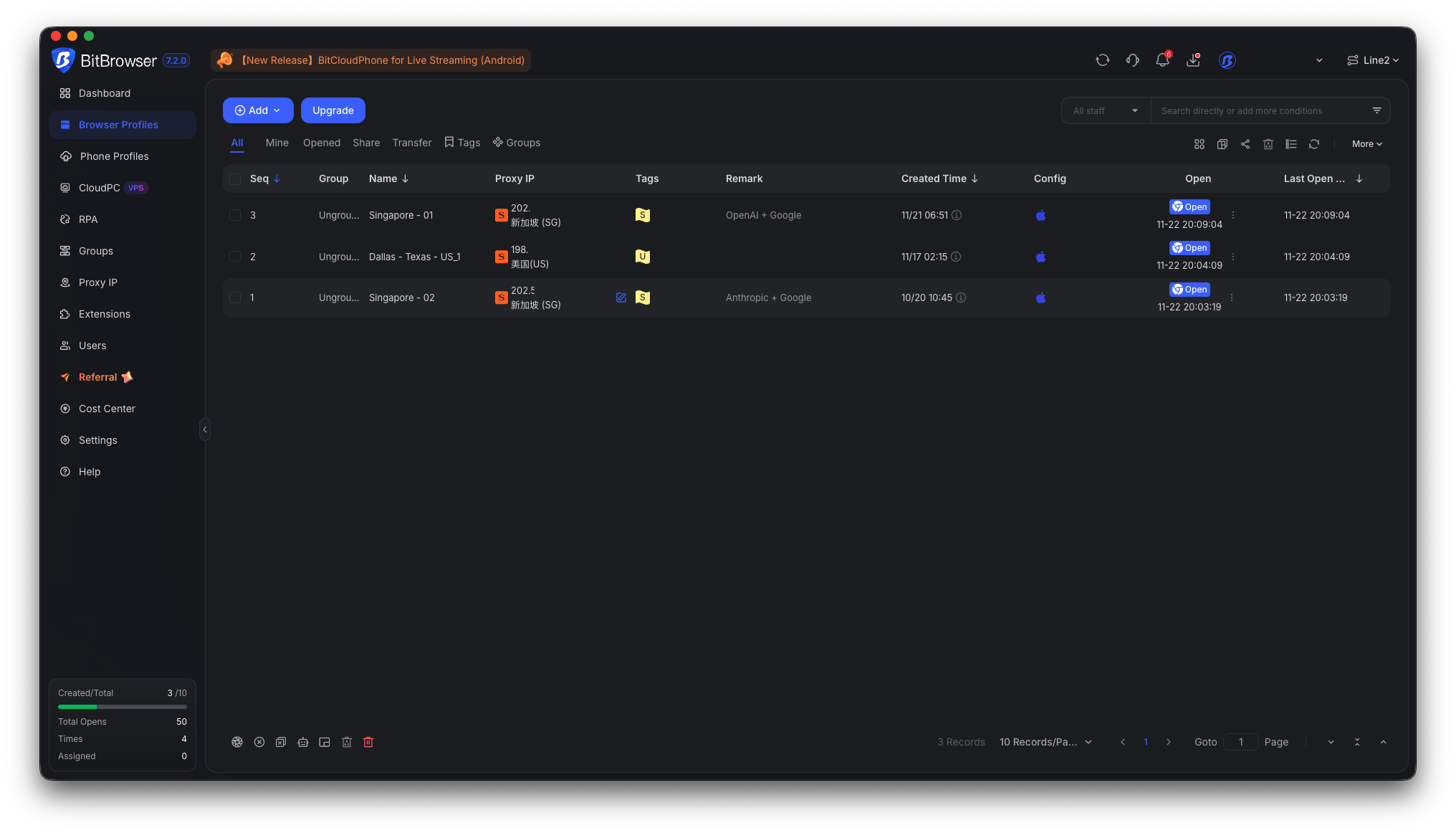
Name it after its job. Two Singapore profiles and a US comparison profile appear here — you only need one, using the same four proxy values.
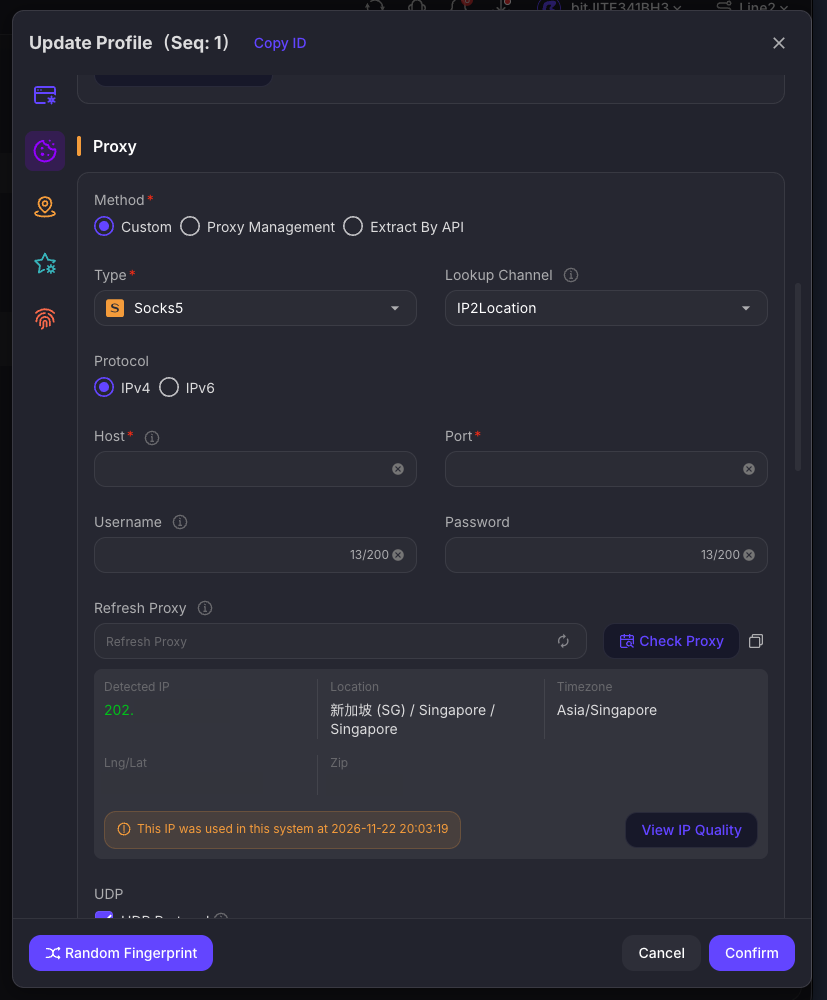
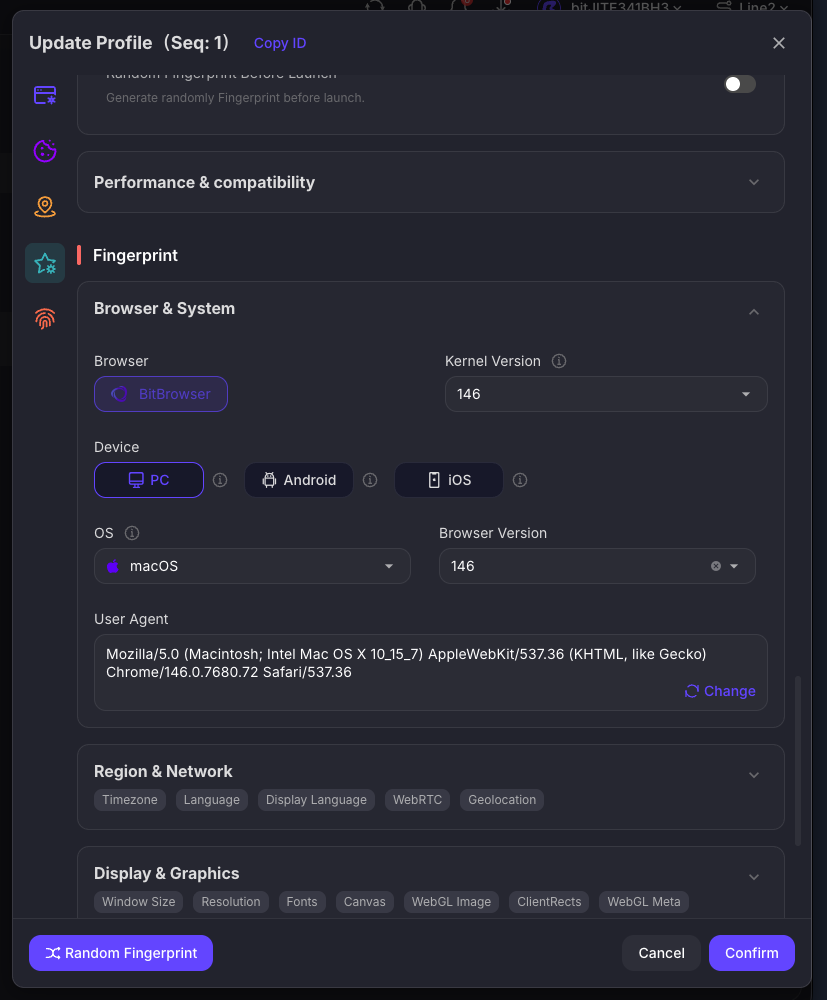
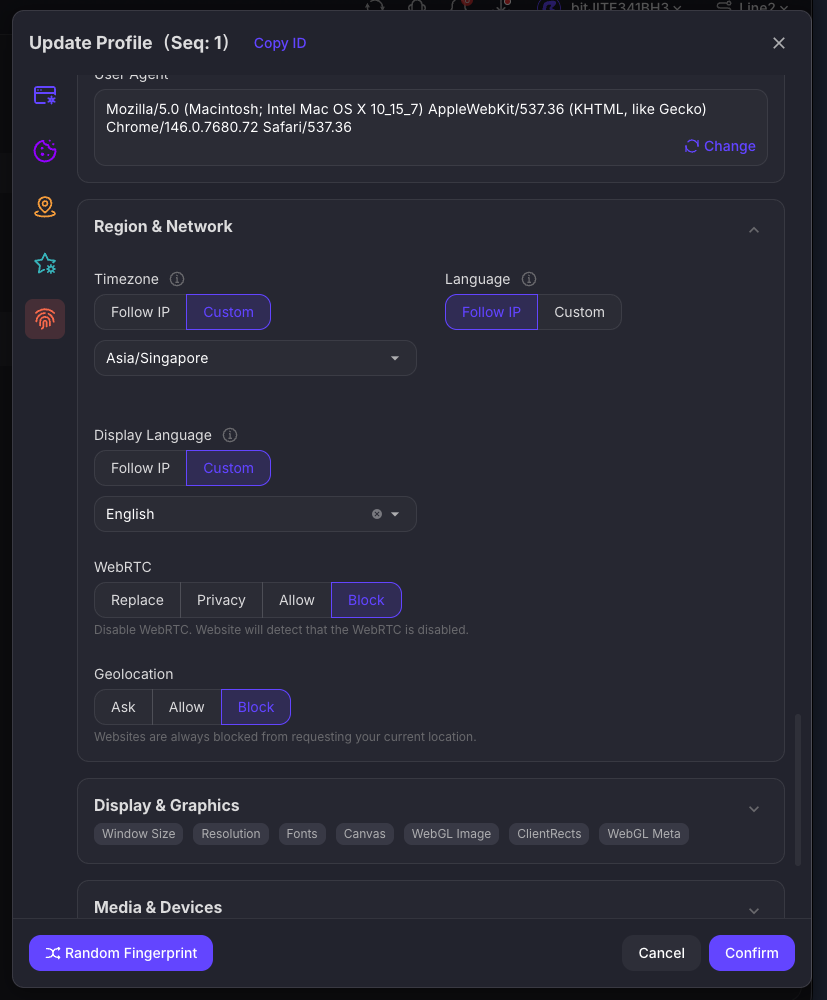
Left to right: Proxy holding Step 2’s four values; Fingerprint left at defaults; Region and Network set to Singapore with WebRTC and geolocation on Block.
Pick Block, never Replace or Allow: Block disables WebRTC completely, and blocking Geolocation stops local Wi-Fi location answers.
Launch SG and open ToDetect, which puts IP Quality Check and Browser Fingerprinting on one page.
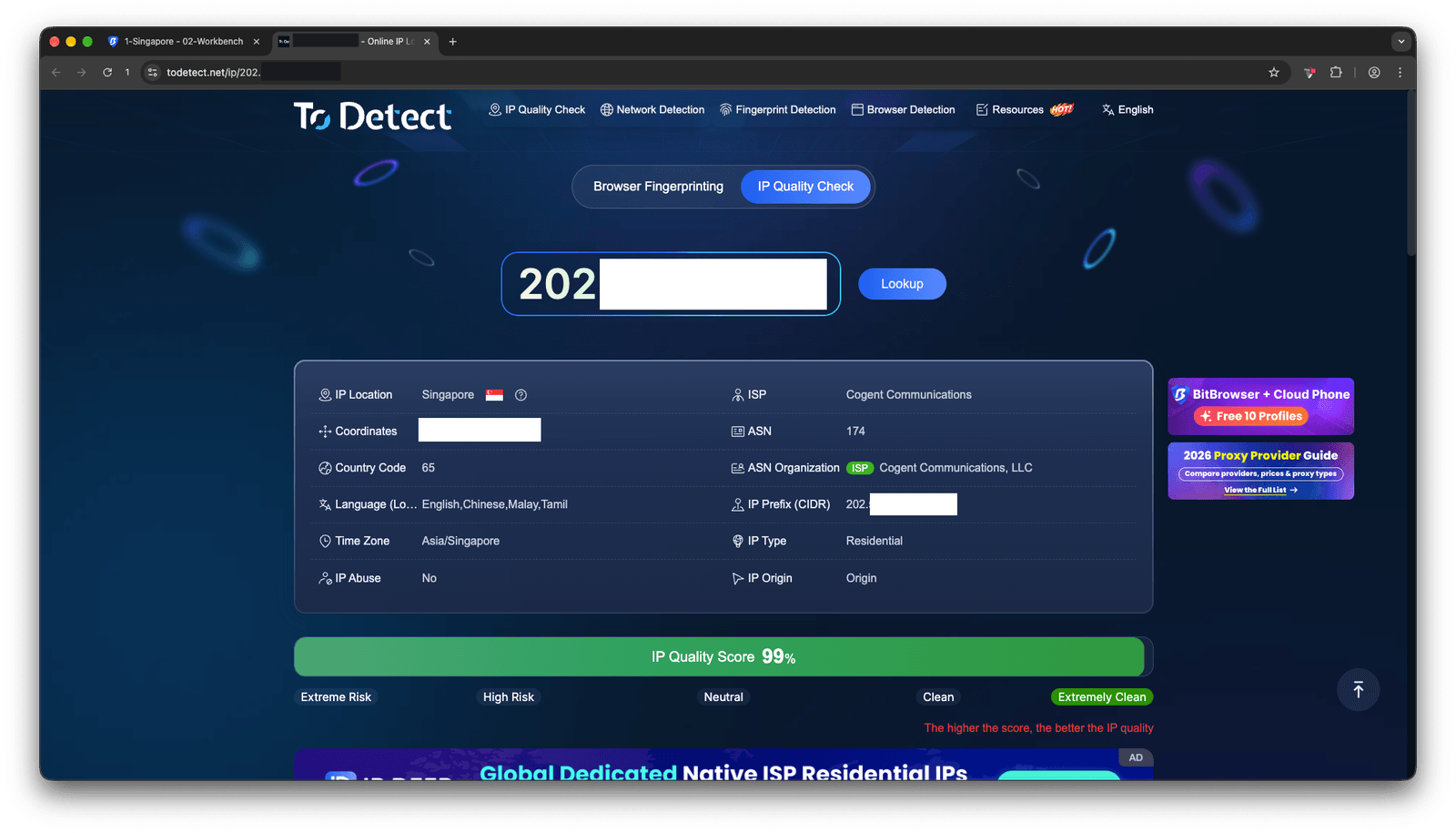
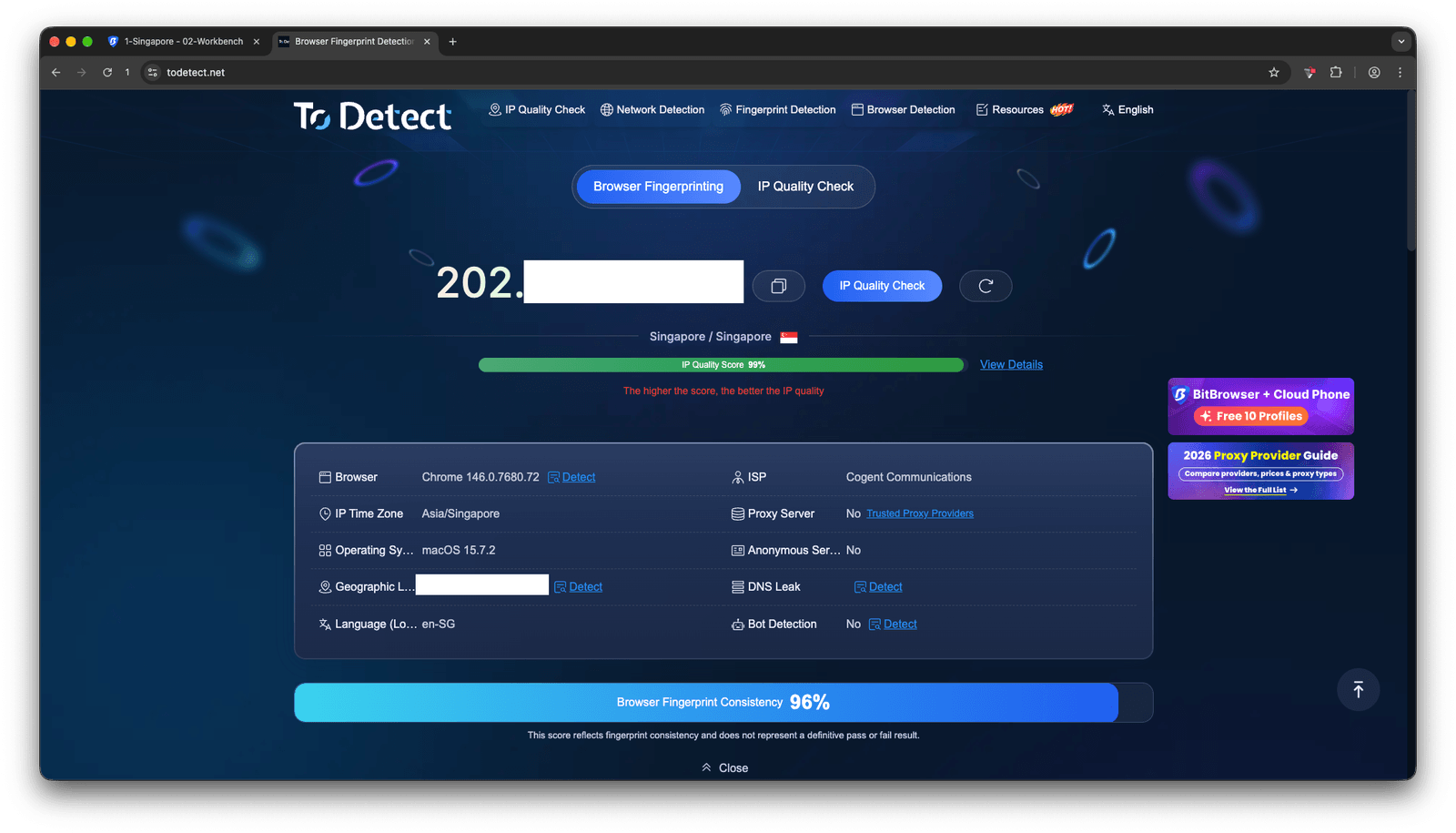
Left: Singapore (65), Asia/Singapore, residential IP, clean score. Right: Chrome on macOS, Asia/Singapore, en-SG, and “Proxy Server: No”.
Verify both tabs. Under IP Quality Check (left): IP Location Singapore, Time Zone Asia/Singapore, IP Type Residential (not hosting), and clean IP Quality Score. Under Browser Fingerprinting (right): match Browser, Operating System, IP Time Zone and Language to your machine and SG (my screenshot shows Chrome on macOS, Asia/Singapore, en-SG, and Proxy Server: No). Left rates IP reputation; right checks browser field consistency separately.
You should now see: Singapore and Residential across both tabs, with zero mention of Hong Kong.
If anything shows Hong Kong: set WebRTC to Block, close the
SGwindow completely, and reopen it — changing WebRTC with the window open may not apply until restart.
Step 5 — Create the account
Time: ten minutes.
Create your Google account inside BitBrowser’s SG window, never in your everyday browser. Only Google is created here; ChatGPT and Claude wait until Step 8. Because Gemini uses a standard Google login, this account is already your Gemini identity for Step 8.
- Inside the
SGprofile, open Google’s signup page and enter your real name plus a date of birth aged 18 or over. - Add a long-term recovery email, and leave the optional recovery phone field blank unless you want to attach a Step 1 SIM.
- Complete whichever check Google shows, and enter the code from a Step 1 SIM if it asks for SMS.
- Open Google Account Security settings immediately and enable 2-Step Verification with an authenticator app or passkey rather than SMS.
You should now see: a working Gmail inbox in SG, with recovery email and authenticator/passkey active under Security.
Step 6 — Route the AI domains, not the machine
Time: ten minutes.
Install routing before billing or emulators. Steps 7–8 need Global mode (whole device on Singapore for billing, Starryblu and BlueStacks); daily work uses Rule / Config mode so banking, mail and Hong Kong sites go direct.
Pick the app for your platform:
| Platform | Client | Cost | Config file |
|---|---|---|---|
| iPhone, iPad | Shadowrocket | HK$22 | singapore-shadowrocket.conf |
| Android | Clash Meta for Android | free | singapore-mihomo.yaml |
| Mac | Clash Verge Rev | free | singapore-mihomo.yaml |
| Windows | Clash Verge Rev | free | singapore-mihomo.yaml |
Apple silicon Macs can also run iPad Shadowrocket with singapore-shadowrocket.conf (match file to app). Both files load five daily-updated lists (OpenAI, Anthropic, Google AI, Devin, Cursor) from VPSDance/ai-proxy-rules, with DIRECT for everything else.
iPhone and iPad — Shadowrocket
A .conf file is a routing Config, not a server. Add them on their separate tabs:
The server, once:
- Tap Home → Add Server. Scan IPDeep’s QR code (verify type, host and port against Step 2), or choose SOCKS5 and paste the four values.
- Switch UDP (or UDP Relay) on inside that server entry so SOCKS5 carries UDP voice traffic alongside TCP.
- On Home, tap the Singapore entry to select it.
The rules:
- Tap Config, then + → Import from URL (Subscribe in some builds), and paste
https://mikeng.io/downloads/ai-routing/singapore-shadowrocket.conf. - Tap the downloaded file and select Use Config.
- On Home, set Global Routing to Proxy for setup/billing and Config for daily split routing.
- Turn on the top switch and approve iOS’s VPN prompt.
- Run Connectivity Test, then open
claude.aiand a Hong Kong site or bank to confirm split routing.
singapore-shadowrocket.conf targets Shadowrocket’s PROXY policy — whichever server is selected on Home — so renaming the server never breaks a [Proxy Group] match. If nothing routes, check the selected Home server, Global Routing mode, and active Config file.
Android — Clash Meta for Android
- Install Clash Meta from F-Droid or grab the APK on GitHub releases.
- Open Profiles → + → Import from URL, paste
https://mikeng.io/downloads/ai-routing/singapore-mihomo.yaml, and save. - Open the profile’s built-in editor and replace
SERVER,PORT,USERNAMEandPASSWORDwith Step 2’s values (the Proxies screen is read-only). - Pick Global mode for setup/checkout and Rule mode for daily use.
- Start the tunnel, open
todetect.netin your mobile browser, and verify Singapore in Global mode.
Mac and Windows — Clash Verge Rev
Clash Verge Rev uses mihomo .yaml profiles:
- Install Clash Verge Rev from its releases page.
- Open Profiles → + → Import, paste
https://mikeng.io/downloads/ai-routing/singapore-mihomo.yaml, and confirm. - Right-click the profile → Edit File, replace
SERVER,PORT,USERNAMEandPASSWORDwith Step 2’s values, and save. - Confirm the block still contains
udp: true— Clash enables UDP relay on that line. - Click the profile card to activate it.
- In Settings, enable TUN Mode for BlueStacks or apps ignoring OS proxy (Windows installs a service; macOS prompts for your password). System proxy handles proxy-aware TCP; TUN captures system-wide TCP and UDP.
- Use Global mode for setup/billing, then Rule mode for daily work.
Rule mode daily; Global for setup and billing. AI rules omit Google Play, Starryblu, bank 3-D Secure pages and emulator traffic — switch to Global (+ TUN on desktop) before Play or billing.
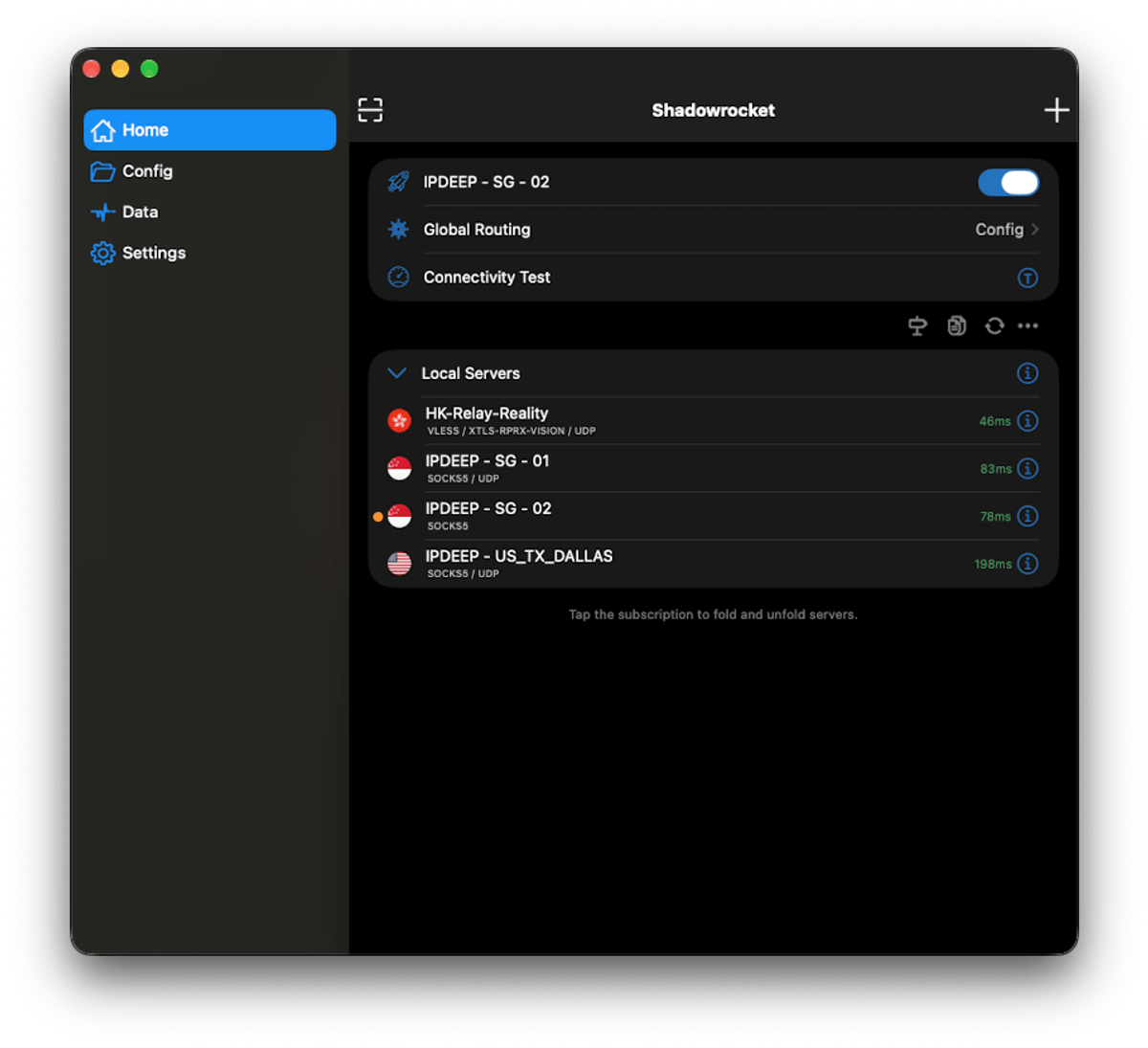
Shadowrocket Home with Singapore selected and Global Routing on Config. The UDP tag depends on the endpoint bought, not the app.
You should now see: todetect.net reporting Singapore in Global mode; in Rule/Config mode, AI domains routing via Singapore while a Hong Kong site sees Hong Kong.
If split routing fails: AI sites showing Hong Kong means the rule config isn’t active; your bank showing Singapore means the app is still in Global/Proxy mode.
Two boundaries: keep web logins inside SG (normal Chrome still holds local cookies/extensions) and use Step 6 for native apps/terminals; rules only carry UDP if your Step 2 endpoint supports it (if voice fails or leaks your Hong Kong IP, replace the endpoint or skip voice). For config or TUN errors, paste the error line — never your password — into an AI assistant.
Step 7 — Set up the card and the payments profile
Time: twenty minutes.
This step sets a Singapore payments profile (saving a card for web Google Pay), or — for in-app Play billing — a Singapore Play country, SGD currency and an accepted Play payment method.
Two rails, and what Google Pay actually changes
“Google Pay” refers to four distinct Google features:
| Name | What it is | Used here? |
|---|---|---|
| Google Pay mobile wallet | Tap-to-pay wallet app for shop terminals | No |
| Google Payments profile | Legal country, currency and billing address on your Google account | Yes — required |
| Website Google Pay button | Checkout button on a site paying with a card saved on your Google account | Yes — default checkout |
| Google Play billing | In-app subscription system inside Android apps | Optional — fallback rail |
Two Google payment rails exist — web Google Pay needs a card saved on your Singapore payments profile; in-app Play billing needs its own Play country, SGD currency and an accepted payment method (direct card checkout is available from Step 7 if neither Google checkout is usable):
| Website Google Pay button | In-app Google Play billing | |
|---|---|---|
| Who bills you | OpenAI, Anthropic, or Google (for Gemini) | Google Play |
| Where you cancel | The provider’s billing page | Google Play → Subscriptions |
| Where refund requests go | The provider’s support team | The provider’s support (OpenAI Support / Claude Support) |
| What can pay for it | A card saved on your Google payments profile | A payment method the Play subscription sheet accepts |
This guide defaults to the website Google Pay button (where offered) so your plan stays on your web account. In-app Play billing is the fallback if you prefer Play’s subscription screen — the Play subscription sheet, not this guide, decides which payment methods it accepts.
Treat the website Google Pay button as paying through your Singapore profile, not hiding where your card was issued. OpenAI or Anthropic still bills you, and Google Pay does not necessarily hide your card number or issuing country: what the processor receives depends on the integration and credential type. Under Google’s API docs, PAYMENT_GATEWAY sends an encrypted token to the processor to decrypt (DIRECT lets the merchant decrypt it), and assuranceDetails is returned only when requested. Google’s API and Stripe’s docs distinguish cards added via Play or Chrome (PAN_ONLY / Funding PAN), which send the card number and expiry and may trigger 3-D Secure, from Android device tokens (CRYPTOGRAM_3DS), which carry a device cryptogram. Neither OpenAI nor Anthropic documents its integration or risk rules.
Choosing a card — and the optional Starryblu route
Google Play Help sets two requirements for a new country: be in that location and have a payment method from it. A 2025 Android Authority guide adds that the first payment method on a new profile must match its country, while cards from other countries can be added afterwards. Google checks the card’s issuing country at the add-card prompt; a Hong Kong card often passes, and if it doesn’t, try Starryblu.
If you want a digital card for online payments, Starryblu provides a multi-currency account with virtual and physical Mastercards. Its Singapore-incorporated operator, WoTransfer Pte. Ltd. (Panda Remit group), holds Monetary Authority of Singapore Major Payment Institution licence PS20200501. The app’s card screen shows the card’s issuing country; the whitelist and ID steps are below.
Before signing up in Starryblu, turn on Singapore routing on your phone — Global Routing set to Proxy in Shadowrocket on iPhone, or Global in Clash Meta on Android — since Starryblu sits outside AI-only rules:
- Register in the Starryblu app. Account creation is open; digital card access waits on the whitelist.
- Enter invite code
MHQK058. That is wquguru’s code (not mine), from wquguru’s X post. - Email to join or expedite the whitelist. Per wquguru’s X post (and walkthroughs where referrers submit IDs to speed up queued applications), email
hello@wqu.gurufrom your signup email with your Starryblu registration ID to request whitelist entry — or ask for an existing queued request to be expedited. - Check the live card screen before paying. Starryblu’s site lists free Starry (
US$0) and paid Plus (US$9.99/month), and one 2026 walkthrough shows aUS$0virtual card, whereas November 2026 user reports on a card tracker state the free virtual-card channel closed and physical-card applicants had to buy one month of Plus aroundUS$9.9and not renew it the next month. Follow whichever option the app shows once approved. - Sign up over your Singapore connection. Use BitBrowser’s
SGprofile or Step 6 in Global mode, because Starryblu sits outside AI-only rules.
Here is the Simplified Chinese whitelist email (per wquguru’s X post) — replace <your registration ID> and send from your Starryblu signup email:
你好,
我看到你在 X 上提到,可以把 Starryblu 注册 ID 发到这个邮箱申请加白名单。
我的 Starryblu 注册 ID 是:<your registration ID>
麻烦帮忙加入白名单,谢谢。
In English: Hello — I saw your post on X saying a Starryblu registration ID can be emailed here to apply for the whitelist. My Starryblu registration ID is …, please help add it to the whitelist, thank you. (If you already joined the in-app queue, note that in the same email to ask for your existing request to be expedited.) Complete identity verification with your real name so the cardholder name matches your Google profile.
The payments profile
Create your Singapore profile at payments.google.com and save a card for web Google Pay (steps 1–3); for in-app Play billing, set your Play country and an accepted payment method in the Android Play Store app (steps 4–5). Direct card checkout is available from Step 7 if neither Google checkout is usable:
- Inside BitBrowser’s
SGwindow, sign in as your Step 5 Google account —play.google.comshows store currency, while web billing profiles are set up atpayments.google.com. - At
payments.google.com, open Settings; if Payments profile → Country/Region isn’t Singapore, click Edit next to Country/Region and choose Create new profile → Continue. - Pick Singapore, enter your name plus a real Singapore street address and six-digit postal code, and submit the profile; for web Google Pay, add your card under Payment methods (Android Authority notes the first card must match the profile’s country).
- In-app Play billing only: on an Android device (or BlueStacks in Step 8) with Step 6 in Global mode, open the Play Store app → profile icon → Settings → General → Account and device preferences → Country and profiles → Singapore, then add a payment method from Singapore (Google Play Help requires being there with a local payment method).
- In-app Play billing only: check Singapore under Country and profiles in the Play Store app, and verify SGD separately on a Play price or the subscription sheet.
Checking the country and billing address
Open payments.google.com settings inside SG and check both fields:
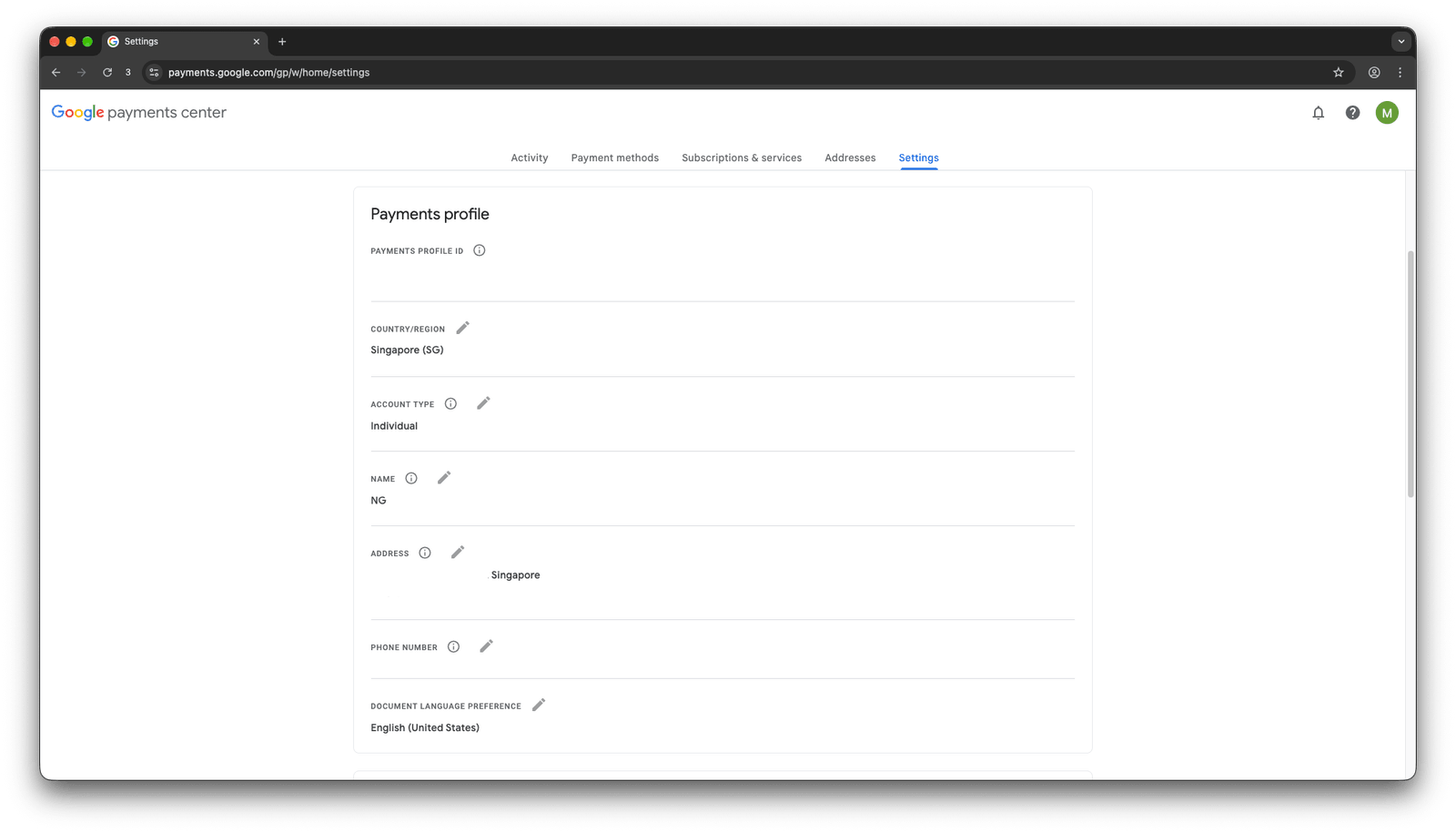
Google Payments settings: Country/Region shows Singapore (SG) — verify this before subscribing, as an existing profile’s country cannot be edited.
| Field | What it should show |
|---|---|
| Country/Region | Singapore (SG) |
| Address | A real Singapore street address and six-digit postal code |
This payments profile holds the single street address across the setup. Use your card’s billing address or a real Singapore address where post can reach you — never copy a random block off Google Maps that you cannot substantiate if asked.
Check your rail before paying: web Google Pay needs a saved card on your Singapore (SG) profile; in-app Play billing needs Singapore under Country and profiles, SGD on a Play price or the subscription sheet, and a payment method the sheet accepts. Direct card checkout is available from Step 7 if neither Google checkout is usable (fallback item 3).
If Google refuses the card: check the address format and your bank’s 3-D Secure prompt, retry once, then try one alternate card. Never retry the same card five times in a row.
Step 8 — Sign up for all three
Time: about thirty minutes.
Register all three on the web in SG with your Step 5 Gmail. Gemini upgrades in SG; for ChatGPT and Claude, my checkouts used BlueStacks to surface web Google Pay (an Android phone or Play billing also works where offered).
Whenever a step says in BitBrowser, work strictly inside BitBrowser’s SG window — never everyday Chrome. Two rules apply throughout:
- Never open a verification or magic link in normal Chrome. Opening an emailed link in your default browser sends that login from your Hong Kong connection and everyday browser profile. Open Gmail inside
SG, or copy link URLs as plain text. - Never click “Continue with Google” on ChatGPT or Claude. Sign up with your Gmail address and emailed codes so future re-logins don’t require signing your Singapore Google account into an unproxied device.
| Detail | ChatGPT | Claude | Gemini |
|---|---|---|---|
| Paid plan | Plus | Pro | Google AI Pro |
| Account signup | Email + code on website | Email + code on website | None — uses Step 5 Google account |
| Signup window | SG in BitBrowser | SG in BitBrowser | Already signed in inside SG |
| Checkout path | Website Google Pay button (shown in BlueStacks here) or Play billing | Website Google Pay button (shown in BlueStacks here) or Play billing | Google Pay in BitBrowser |
| Phone number | Not requested on my signup (keep Step 1 SIM if asked) | Not requested | Same as Step 5 |
| Main failure point | Wallet button absent or connection dropping to Hong Kong | Link opened outside SG, or account-country eligibility | Developer tools (API request location vs Antigravity account country) |
Plan prices vary by store; confirm the live SGD amount on the payment sheet.
Preparing BlueStacks for the ChatGPT and Claude checkouts
In my ChatGPT Plus and Claude Ultra checkouts (screenshots below), BlueStacks’ browser surfaced Google Pay — skip BlueStacks if SG already shows it. On a physical Android phone, put Clash Meta in Global mode, sign in to your Step 5 Google account, and use Chrome for web Google Pay or the official ChatGPT or Claude app from Google Play for Play billing. Otherwise, finish web signup first, then run items 1–3 before checkout (items 4–5 point below):
- After web signup — full-device routing: Switch Step 6 to Global mode (with TUN Mode in Clash Verge Rev). BlueStacks has no internal proxy, and Play or checkout pages sit outside AI rules.
- After web signup — install BlueStacks: Install BlueStacks Air on Apple silicon Mac, or BlueStacks 5 on Windows (enable virtualisation first).
- After web signup — sign in to Play: Open Play Store in BlueStacks and sign in with your Step 5 Google account so your saved Google payment method and Play Store are ready.
- Checkout step — see each service below: Follow the ChatGPT (
chatgpt.com) or Claude (claude.ai) subsection below when you are ready to open checkout. - Payment step — see below: Complete the upgrade in the ChatGPT or Claude subsection (confirming Google Play’s subscription sheet in-app), or use the fallbacks below if BlueStacks stalls.
Whichever rail you pick, the paid plan attaches to your ChatGPT or Claude login and survives changing cards later.
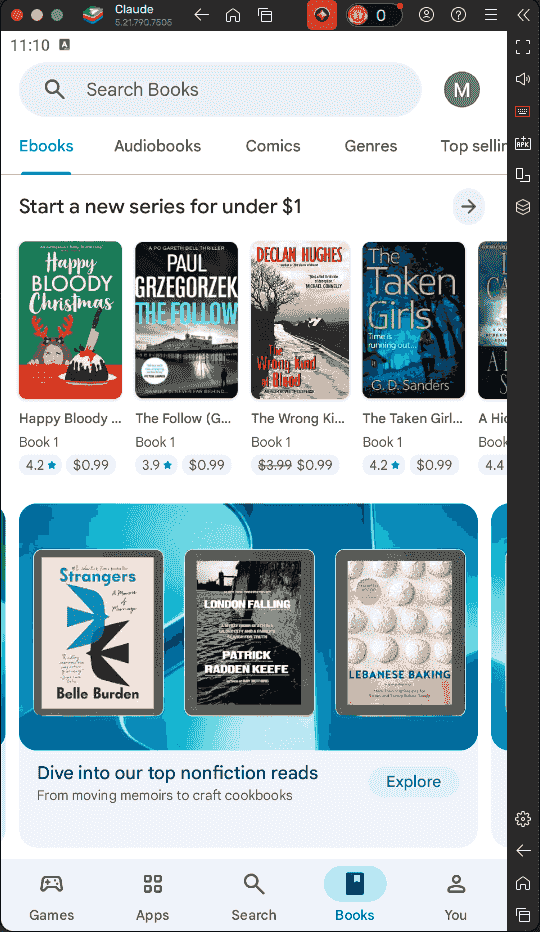
Google Play in BlueStacks signed in to the Singapore account. Ignore $ signs on Books listings — verify Singapore (SG) in Step 7 and Step 9.
If a Play Store error, checkout stall, or failed in-app purchase stops BlueStacks, skip emulator settings and use the matching fallback:
- Web checkout in BlueStacks lacked Google Pay or stalled: try in-app Play billing in the official ChatGPT or Claude app from Google Play — in BlueStacks, or if a Play Store error or failed purchase blocks it, on a physical Android phone (Step 6 Global mode, Singapore Google account) — confirming Play’s subscription sheet before subscribing.
- In-app Play purchase in BlueStacks failed first: if you have no physical Android phone (or a phone retry fails), open BlueStacks’ browser directly; otherwise retry in-app or in Chrome on the phone (Step 6 Global mode, Singapore Google account) — visit
chatgpt.comorclaude.aiand use web Google Pay if offered. - Only if neither Google checkout is usable: enter your card directly on the provider’s web checkout form in BitBrowser
SG(available from Step 7 onward).
ChatGPT
- In BitBrowser, launch
SG, openchatgpt.com, click Sign up (not Continue with Google), and enter your Step 5 Gmail. - Open Gmail in another tab of
SG, copy OpenAI’s code, and enter it. - Enter your actual adult date of birth (matching what you used on Google), then send a couple of free-tier prompts to confirm the account works before paying.
- To upgrade, put Step 6 in Global (+ TUN) mode, open
chatgpt.comin BlueStacks’ browser (orSGif Google Pay appears there, or Chrome on your Android phone), and sign in with the emailed code fromSG. - Click Upgrade, select Plus, and pay via the Google Pay button if offered — or use the Android app / fallbacks above.
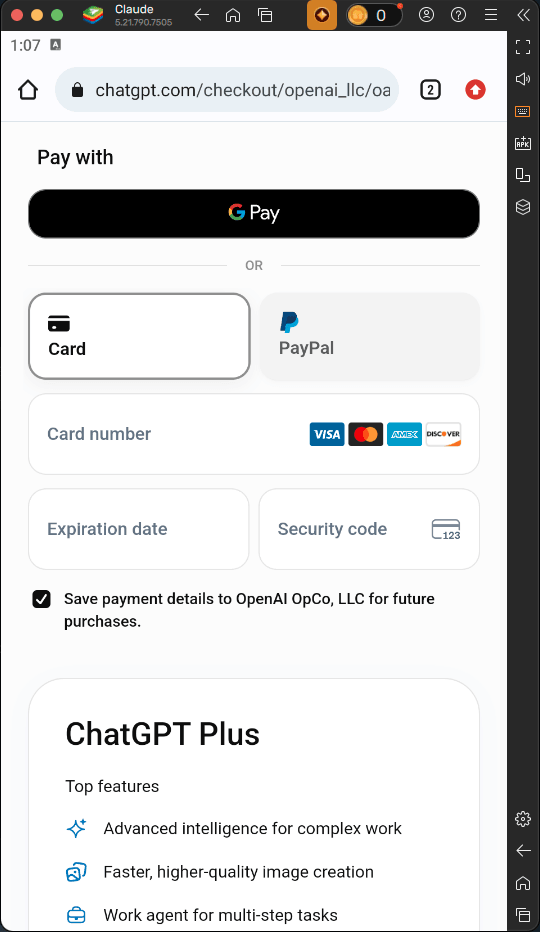
My ChatGPT Plus web checkout in BlueStacks: the Google Pay button appeared above the card form.
If ChatGPT asks you to verify again on a later login, inspect these local settings (OpenAI does not publish what triggers re-verification):
- Connection routing: whether your device sent traffic outside Singapore — for instance, waking from sleep before Step 6 reconnected, or joining Wi-Fi with routing off.
- Timezone or locale: whether OS timezone or language shifted away from Singapore / English.
- Billing settings: whether your card’s issuing country matches your
Singapore (SG)payments profile and your saved payment method matches Step 7 (what Google Pay passes to OpenAI’s processor is undocumented).
Claude
- In BitBrowser, launch
SG, openclaude.ai, and sign up with your Step 5 Gmail — not Continue with Google. - Open the emailed code or magic link in
SG. - Test the free tier before paying. Send a couple of normal prompts inside
SGto confirm the account responds cleanly and saves chat history before subscribing. - To upgrade, put Step 6 in Global (+ TUN) mode, open
claude.aiin BlueStacks’ browser (SGif Google Pay appears there, or Chrome on your Android phone), sign in via the emailed code fromSG, pick Pro (or your plan), and pay via Google Pay if offered — or use the Android app / fallbacks above.
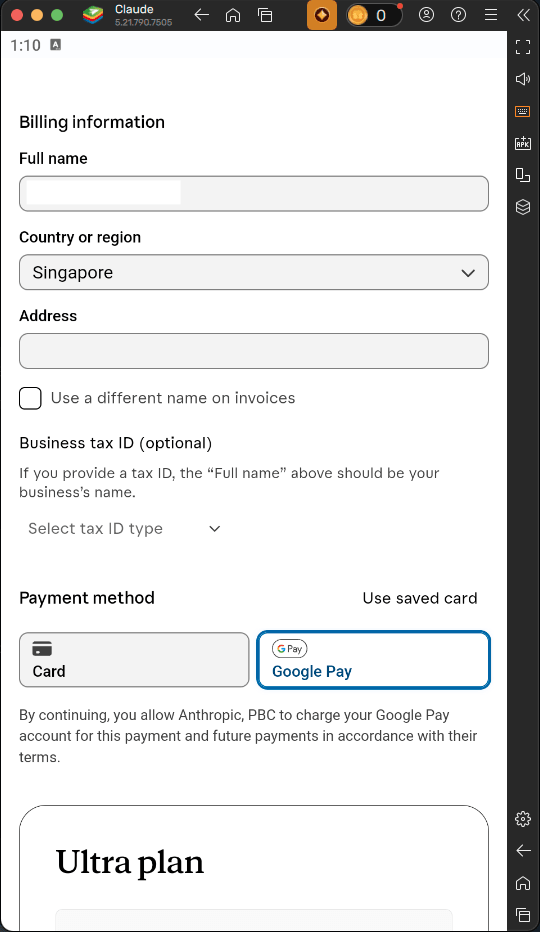
My Claude Ultra billing screen in BlueStacks: Country or region set to Singapore, with Google Pay selected beside Card.
If an account is closed, contact Claude Support for a refund whether you paid via web Google Pay or in-app Google Play (cancel recurring Play plans in Google Play → Subscriptions). Always request a refund before writing it off.
Gemini
- Inside BitBrowser’s
SGwindow, opengemini.google.com(you’re already signed in via Step 5) and run the relevant checks below before paying. - For the benefits included in Google AI Pro (Vertex AI stays billed separately through Google Cloud), confirm the relevant surfaces below work first, then upgrade in
SGwith Google Pay if offered — no BlueStacks needed.
The four Gemini surfaces check different gates. Test the free tier on Gemini web, AI Studio, the Gemini API or Antigravity as applicable; Vertex AI bills through Google Cloud, so check console model availability instead:
- Gemini web chat (
gemini.google.com) — everyday browser chat, writing and file questions. Google’s web list includes Hong Kong. Check (web-only readers stop here): send a prompt atgemini.google.com; each developer surface below sets its own eligibility rules. - Google AI Studio and the Gemini API — browser prompt studio and calling Gemini models from code. Both share a region list covering Singapore and excluding Hong Kong, Mainland China and Macao, gated on request origin (Colab checks the Colab runtime’s location). A
User location is not supported for the API useerror means Google placed the request outside that list — a terminal, server, domain rule or IPv6 path skipping your proxy is one cause to test, alongside Google’s IP geolocation differing from lookup sites. Check: openaistudio.google.cominSGif you use AI Studio, or run one terminal API call with Step 6 on if you call the API. - Vertex AI (Gemini Enterprise Agent Platform) — cloud APIs billed via Google Cloud. Google directs developers outside AI Studio’s list here. Authenticated via Google Cloud, its endpoints include Hong Kong (
asia-east2) and Singapore (asia-southeast1), though endpoint tables don’t state Hong Kong account-country rules. Check (Google Cloud users only — billed through Google Cloud, not a free-tier test): verify model availability in the Vertex AI console. - Google Antigravity — Google’s agentic coding IDE and
agyCLI. Its official FAQ checks account association: a personal@gmail.comaccount (18+) whose Google Terms of Service country is on Antigravity’s list (Singapore is; Hong Kong isn’t; wrong entries use Google’s region-change form). For paid rate limits, one unconfirmed forum reply (not marked official) also suggested an active Hong Kong payments profile and proxy use as troubleshooting leads when a paid subscriber showed ineligible. Check (only if you use Antigravity): confirm Singapore on Google’s Terms of Service country page inSG, then sign into Antigravity free before paying.
The order I’d buy them in
- ChatGPT first, if eligible and used daily — confirm web sign-in in
SGand test the free tier before paying. - Claude second — strongest on long documents and code; test the free tier before upgrading.
- Gemini last — run only the checks above for the Gemini surfaces you plan to use before paying.
Start with one paid plan. Cancel on the provider’s billing page (or Google’s subscriptions page for Gemini) for web purchases, and in Google Play → Subscriptions for Android app purchases.
Using it from the terminal
Developer terminal tools need Step 6 routing via Singapore and each tool’s eligibility rules (OpenAI’s supported-country rule for Codex, Anthropic’s supported-location rule for Claude Code, request origin for Gemini API, and Google ToS country for Google-signed-in agy). Interactive login flows also need sign-in inside SG; the exception is Antigravity with GEMINI_API_KEY, which authenticates without a Google sign-in.
| CLI | Command | What happens | Safe sign-in flow |
|---|---|---|---|
| Claude Code | claude auth login | Prints an auth URL (c copies it) and listens on localhost | Paste the URL into BitBrowser SG; if a code appears instead of redirecting, paste it at Paste code here if prompted |
| Codex | codex login --device-auth | Prints a URL and one-time code without opening a browser (enable device auth in ChatGPT security settings first) | Open the URL in BitBrowser SG, sign in, and enter the terminal’s code |
Antigravity (agy) | agy over SSH | Prints an authorisation URL and waits for a token | Open the URL in BitBrowser SG, sign in with the Singapore Google account, and paste the alphanumeric code back |
For interactive logins, keep the same rule: open the URL in BitBrowser’s SG window, sign in there, and read emailed codes in SG. Locally, localhost callbacks only need a browser on the same machine — which BitBrowser is.
Always copy the URL/code; never use the auto-opened default browser. Letting claude auth login or agy open Chrome sends your Hong Kong connection and everyday browser fingerprint, and may authorise your personal account immediately. Close auto-opened tabs and paste into SG (c copies in Claude Code; Codex --device-auth opens nothing). Sign out of personal AI/Google accounts in Chrome first, and if SG proxies 127.0.0.1 and breaks callbacks, use each tool’s manual code-paste fallback.
For servers and CI: claude setup-token mints a one-year token (complete its browser prompt in SG), and Antigravity accepts GEMINI_API_KEY (modelProvider: gemini) to skip Google OAuth completely.
Living with it
- On the web, stay in BitBrowser. Launch
SGwhenever using ChatGPT, Claude or Gemini in a browser; never log in from everyday Chrome. - Native apps run on your normal devices. With Step 6 in Rule / Config mode, desktop and mobile apps for ChatGPT and Claude, Gemini and Antigravity route via Singapore while local apps stay direct.
- Chat language: ChatGPT and Gemini take English, Cantonese, Chinese and voice interchangeably. Anthropic states no chat-language rule, though as my own habit I write to Claude in English; if typing English slows you down, dictate in your own language via Typeless or OpenLess so the output lands in English.
Step 9 — The final check
Time: five minutes. Once setup is running, run every unlabelled check below, then the billing rows for your payment path.
| Check | Window or device (and mode) | Passing result label |
|---|---|---|
| Exit IP country | todetect.net in BitBrowser SG (proxy on), then device browser with Step 6 in Global mode | IP Quality Check → IP Location: Singapore (65) |
| Residential IP type | todetect.net in BitBrowser SG (proxy on) | IP Quality Check → IP Type: Residential; Proxy Server: No |
| Network timezone | todetect.net in BitBrowser SG (proxy on) | IP Quality Check → Time Zone: Asia/Singapore |
| WebRTC and DNS leaks | todetect.net in BitBrowser SG (WebRTC Block), then device browser with Step 6 in Global (+ TUN) mode | Browser Fingerprinting → DNS Leak (click Detect) and Network Detection (WebRTC): Singapore IPs or disabled WebRTC — zero Hong Kong entries |
| OS timezone | macOS System Settings → Date & Time or Windows Settings → Date & time (any mode) | Time Zone: Asia/Singapore / (UTC+8) Singapore |
| OS language | macOS Language & Region or Windows Language & region (any mode) | Top language: English (recommended; optional for Chinese menus) |
| Browser locale | todetect.net in BitBrowser SG (proxy on) | Browser Fingerprinting → Language: en-SG (or en) |
| Play country & currency (in-app Play billing only) | Android Play Store (Global) → Settings → General → Account and device preferences → Country and profiles (country); a Play price or subscription sheet (currency) | Country Singapore under Country and profiles, SGD on a Play price or subscription sheet, and an accepted payment method |
| Billing country & address (web Google Pay & Play billing) | payments.google.com → Settings in BitBrowser SG | Country/Region: Singapore (SG), real Singapore address/postal code, and saved card (web Google Pay) |
| Google 2-Step Verification | Google Account → Security in BitBrowser SG | 2-Step Verification: Authenticator or Passkeys active |
Once Global checks pass, switch Step 6 back to Rule (Clash) or Config (Shadowrocket) so everyday Hong Kong traffic goes direct.
When something goes wrong
| What you see | Cause or settings to check | What to do |
|---|---|---|
| Phone number rejected | Google rejected the number (VoIP or already used) | Try a different SIM. Google’s location gates live on network location, account country and billing, not on the number itself |
| Card declined in Play or Google Pay | Address mismatch, bank 3-D Secure block, or card country rejected on new profile | Verify Singapore address and 3-D Secure prompt, retry once, then test one other card rather than retrying five times |
| Account asks to re-verify later | Trigger undocumented — check Step 6 routing across sleep/Wi-Fi, OS timezone/language, and whether your card’s issuing country and saved method match your Singapore (SG) profile | Re-run Step 9 and confirm Step 6 stays connected across sleep and Wi-Fi changes |
| Paid subscription vanishes | Renewal failed, cancelled, or account closed | Check your rail’s billing page (provider settings for web Google Pay; Play → Subscriptions for app billing), then check account status before retrying a card |
| App missing from Google Play | Play country update still settling, incompatible device, or app unavailable in that country | Check Singapore in Android Play Store → Settings → General → Account and device preferences → Country and profiles, then check device compatibility and regional availability |
| Gemini API, AI Studio or Antigravity region/eligibility error | AI Studio/API placed request outside supported list (proxy bypass on terminal/server/IPv6 or IP geolocation mismatch); Antigravity gates on ToS country (and one unconfirmed forum reply flagged Hong Kong payments profiles or proxies) | Test IPv4/IPv6 exits and generativelanguage.googleapis.com routing for AI Studio/API; for Antigravity, check Google’s ToS country page first and treat any Hong Kong payments profile or proxy path as a troubleshooting lead |
Questions
Do I need a Singapore phone number?
No — nothing here requires +65 (and passport-registered Singapore prepaid SIMs expire after 30 days). Google only sometimes asks for SMS; Claude did not ask for a number. See Step 1 and “Is this legal?”.
Can I just change the country on my existing Google account?
Better not. Switching Play country has strict eligibility and cooldown rules, leaves your Hong Kong history and existing payments profile attached, and puts your main inbox, Drive and two-factor recovery on the same account; see “Why a new account, and not the one you have” above for the full rules.
Is this legal?
Routing from an unsupported region breaches platform terms of service, which is distinct from criminal law — though rules on address or identity declarations depend on jurisdiction and what you submit. Never fabricate identity documents or impersonate another person; the practical penalty for a terms-of-service breach is account closure, potentially without refund.
Will the account get banned anyway?
It can. Accessing services from an unsupported region breaches provider terms, and accounts can be flagged or closed. Keeping web sessions in SG and verifying Step 9 avoids accidental misconfiguration, with no guarantee against enforcement.
Do I need a Mac?
No. Windows PCs run BitBrowser, Clash Verge Rev and (if you want desktop Android) BlueStacks 5 with hardware virtualisation enabled. On an Intel Mac, BlueStacks Air is unavailable (Apple silicon only), so if SG doesn’t offer Google Pay directly on checkout, use a spare Android phone or Windows PC.
Can I do all of this on my phone?
Not end to end. Step 4’s isolated SG browser window in BitBrowser requires macOS or Windows. Afterwards, an iPhone or Android phone handles daily apps via Step 6, and a spare Android phone can replace BlueStacks for Play checks and Step 8 checkouts.
What if Google Play refuses the card?
Separate bank blocks from Google country checks. Approve any overseas or online-purchase block or 3-D Secure prompt in your bank app and retry once. If Google rejects the card during Singapore profile setup, try one alternate card (or Starryblu) instead of repeating retries: web Google Pay needs a saved card on the Singapore profile, while in-app Play billing needs the Singapore Play country, SGD prices and a payment method the Play subscription sheet accepts (the sheet decides). If neither Google route works, sign up free in Step 8 and pay the provider directly under fallback item 3 (skipping Step 9’s Google billing rows).